Troubleshooting
Broadcasting
Stream won't connect
Run the Stream Diagnostic: In the Streams window, click the Test Stream button. This will run a diagnostic test that will give you clear hints about why Rocket Broadcaster could not connect and how to resolve it.
If your username or password is incorrect, please contact your stream hosting provider as only they will be able to assist with that. Be sure to also doublecheck all your stream connection details.
If you experience connectivity issues often with your stream hosting provider, try Radio Mast for more reliable streaming. Radio Mast is designed to make getting connected easier, and was created after 10 years of solving problems for broadcasters like yourself.
Stream disconnects after a few seconds
If your stream connects but then appears to disconnect after a few seconds, it's likely that your soundcard has "stalled" and is no longer feeding audio to Rocket Broadcaster. With no audio to encode (not even silence), Rocket Broadcaster has no data to send to the server, and the server usually drops the connection after a few seconds of inactivity.
Rocket Broadcaster can detect soundcard stalls and will show a specific error message about this, but you can verify the issue by checking if the Master VU Meter in the main window is moving and green. If the inputs do show activity but the Master VU meter does not, then your soundcard is stalled.
See the Audio Device Error question below for troubleshooting.
If you are using an AoIP driver (eg. Wheatnet, Dante, AES67), it is possible for the AoIP driver to stall if your AoIP network is experiencing issues.
Stream disconnects randomly
If your stream disconnects randomly in the middle of your broadcast, there are a few possible explanations:
- Your internet connection dropped. Your PC may have lost connectivity to the internet.
- Your ISP lost connectivity to your streaming server. Your internet connection may have still been working, but your ISP was suddenly unable to reach your stream hosting provider.
- Your stream hosting provider was down.
If you are present during a disconnection, you can run a Stream Diagnostic by clicking Broadcast->Streams and clicking the "Test Stream" button. The Stream Diagnostic will give you a hint about which of the above possibilities it was.
If your internet connection is via Wi-Fi, try using a wired ethernet connection instead.
If you frequently lose connectivity to your stream hosting provider, try Radio Mast. Radio Mast is optimized for reliable connectivity and globally accessible, with servers on 5 continents.
If your audio input device is an AoIP driver (eg. Wheatnet, Dante, AES67), then your AoIP network may have failed and caused a soundcard stall. If AoIP is stilled, there is no audio to encode, so Rocket Broadcaster's connection will usually get dropped by the server due to inactivity.
In rare cases, network connectivity failure can be caused by buggy or underpowered networking hardware inside your LAN. For example, if your router's NAT translation table fills up (out of memory), your connection may be dropped randomly. If you're experiencing this, and you're in a corporate IT environment, please contact your network administrator.
To help troubleshoot internal network issues, try tethering and using your mobile phone's internet connection.
Stream becomes choppy after some time
If your stream becomes choppy after some time, try disabling the Audio Output Device in the Rocket Broadcaster Preferences.
If you are running Rocket Broadcaster 1.4 or newer, and you still experience choppiness after some time, you may have a hardware issue. We have seen the following rare causes:
- Some Focusrite driver versions can cause choppiness under high load. Upgrade your drivers to resolve it.
- Some USB soundcard drivers are buggy when used with DirectSound as the Audio API. See below.
- Some USB controllers are buggy and can struggle under high load.
Use WDM-KS or ASIO: We recommend choosing "WASAPI" as the Audio API in the Rocket Broadcaster Preferences, as it has the widest compatibility. If you have a multi-input soundcard or need a mono input, choose WDM-KS or ASIO as the Audio API.
Upgrade drivers: We recommend updating your soundcard drivers and checking Windows Update for any optional updates. USB controller drivers are often included in updates to motherboard chipsets, so if you see a "chipset" driver update, install it.
Apply Windows Power Plan tweaks: If you still experience choppiness, we recommend making the following two system tweaks:
- Set your Windows Power Plan to "High Performance".
- In the Windows Power Plan settings, under the Advanced Settings, disable "USB selective suspend".
To summarize the possible solutions you should try if your stream becomes choppy over time:
- Upgrade to Rocket Broadcaster 1.4 or newer.
- Try changing the Audio API in the Preferences to WDM-KS or ASIO.
- Upgrade your soundcard drivers and apply any optional Windows Updates.
- Apply the Windows Power Plan tweaks above.
"Audio Device Error" message
If you see "Audio Device Error", it means Rocket Broadcaster could not access the audio input or output device configured in the Preferences. There's a number of reasons why it could be, but it's usually outside the control of the application.
An audio device can fail to be accessed for the following reasons:
-
Blocked by Windows 10/11 app permissions - In the Windows 10 and 11 settings, there's a special "Microphone" permission setting where you can control each application's access, and if this is disabled, you will get an Audio Device Error. Sometimes Windows gives a little popup when an application tries to use an input device for the first time, and if you click the wrong button, you will deny access. (Windows is inconsistent about showing this prompt.)
To check for this issue, search the Start menu for "Microphone privacy settings". Ensure "Let desktop apps access your microphone" is enabled.
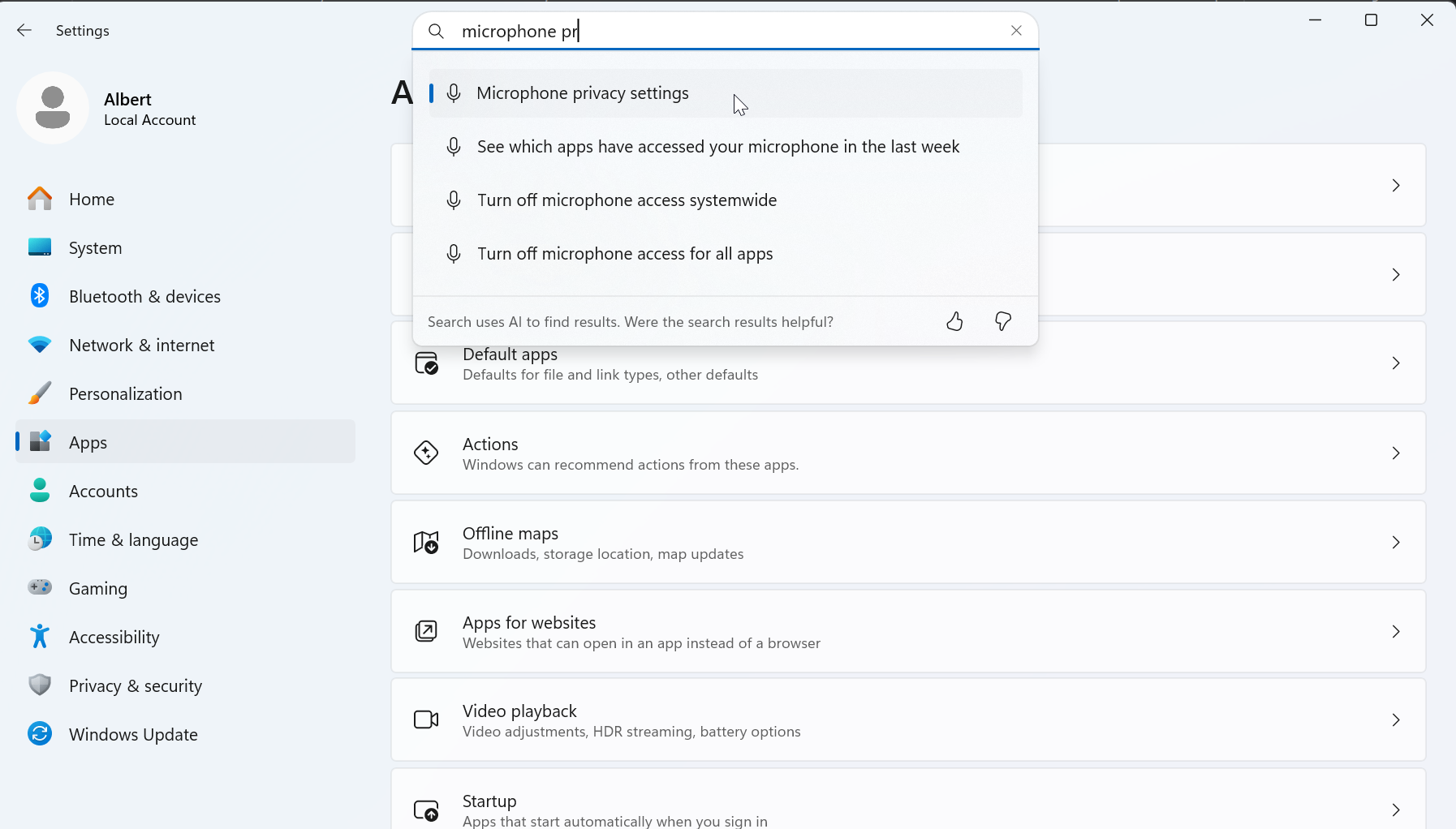
You can also search the Windows Settings app for Microphone Privacy Settings -
A particular input or output jack has been powered off. Some audio devices power down particular jacks if nothing is plugged in, for power saving. This is very common on Realtek onboard soundcards, where individual ports can be shut down when nothing is plugged in (called "jack sense"). HDMI audio devices can also become available when devices go to sleep. For example, if your output device is set to a computer monitor, the output might fail when the monitor sleeps. We recommend avoiding HDMI outputs and just disable "Audio Output Device" in the Preferences unless you need it for continuous local audio monitoring.
-
Buggy or poor quality soundcard drivers. Soundcard drivers can be buggy and do not support configurations they advertise to applications. Drivers may indicate they support a samplerate but give an error when Rocket tries to use that samplerate. Choosing a different Audio API in the Rocket Broadcaster Preferences can sometimes work around buggy drivers, as each soundcard driver has separate code paths for each audio API, so there's a bug in their support one audio API, it's not necessarily in another one.
We recommend checking with your sound device manufacture for updated drivers if you experience this issue.
-
Another application has "exclusive access" to that soundcard or jack, which is preventing Rocket Broadcaster from using it. Try closing all other audio applications. If you identify another application that is hogging the soundcard, look at the soundcard settings inside the guilty application and try disabling "exclusive mode" or enable "shared mode". If you're using ASIO, ASIO used to only support exclusive access, so only a single application could use the soundcard at a time. Some newer soundcards with modern ASIO drivers, no longer have this limitation.
Metadata
Trouble setting up TCP or UDP metadata integration
If you're trying to get metadata integration working with your radio automation system, please start following the corresponding how-to guide carefully.
When Rocket Broadcaster Pro receives any metadata over TCP or UDP, it will be written to the log file. By checking the log file (Help->View Log), you can determine if any metadata at all is reaching Rocket Broadcaster. If there is no metadata reaching Rocket Broadcaster, then there is either a configuration issue on the radio automation side, or a network issue. Check your radio automation logs for an error, or please contact your radio automation vendor for support.
If you do see metadata appearing in the log, but it doesn't appear in the main window under "Now Playing", then the metadata did not match the format you have selected. In the Metadata Capture window, look under the TCP Server or UDP Server tab and check the Format setting. Make sure it is the correct format for your radio automation system, which should be mentioned in the corresponding how-to guide. (If in doubt, please contact support, and we can help identify the metadata format.)
If you see metadata appearing correctly under "Now Playing" in the main window, but it is not appearing in your stream, please contact your stream hosting provider.
TCP or UDP metadata integration stopped working
Check if your radio automation system is up and connected to the local network.
Check if metadata is appearing under "Now Playing" in the main window of Rocket Broadcaster. If it is, then please contact your stream hosting provider for support.
Verify that the IP address of your encoder PC is still the same as when you initially configured your metadata integration. If you're using DHCP, make sure you assign a reserved IP to your encoder PC to ensure its IP address doesn't change. (We recommend using a static IP, if possible. We have seen buggy routers drop connections during DHCP lease renewals.)
Check for any recent changes to your network, such as a new firewall or internet security software that could be blocking the TCP or UDP connection from your radio automation system to your encoder.
How can I check if metadata is present in a stream?
We recommend using Foobar2000 to play your stream, as it will display any metadata in your stream.
In the past, we recommended VLC, but VLC has a long-standing bug that prevents it from decoding metadata in HTTPS streams, which is a common source of confusion for broadcasters.
Licensing
Where do I enter my license information?
When you run Rocket Broadcaster Pro for the first time, you will be prompted to enter your license information. If you weren't, then you don't have the Pro Edition installed. The Pro Edition is a separate download, which you can find a link to in your license email. Alternatively, you can download Rocket Broadcaster Pro by logging into our shop and clicking My Products.
How do I recover my lost license information?
Lost license information can be recovered by logging into our shop website and clicking My Products. You can download Rocket Broadcaster Pro from there too.
If you have lost your password to our shop, you can reset your password here.
If you have lost your connection information for Rocket Broadcaster and a Radio Mast customer, you can find your stream details by logging into your Radio Mast account and clicking the name of your stream.
If you have lost your connection information for Rocket Broadcaster and you are using a different stream hosting provider, please contact your provider to recover your connection information.
How do I move my license to a new PC?
To move your Rocket Broadcaster Pro license to a new PC, just install Rocket Broadcaster Pro and enter your license information normally. Our licensing system will detect that you have activated your license on a new PC and automatically reassign your license seat.
If a licensing problem is detected, follow the instructions given inside the application.